White Label for MettaXIoT PC Web
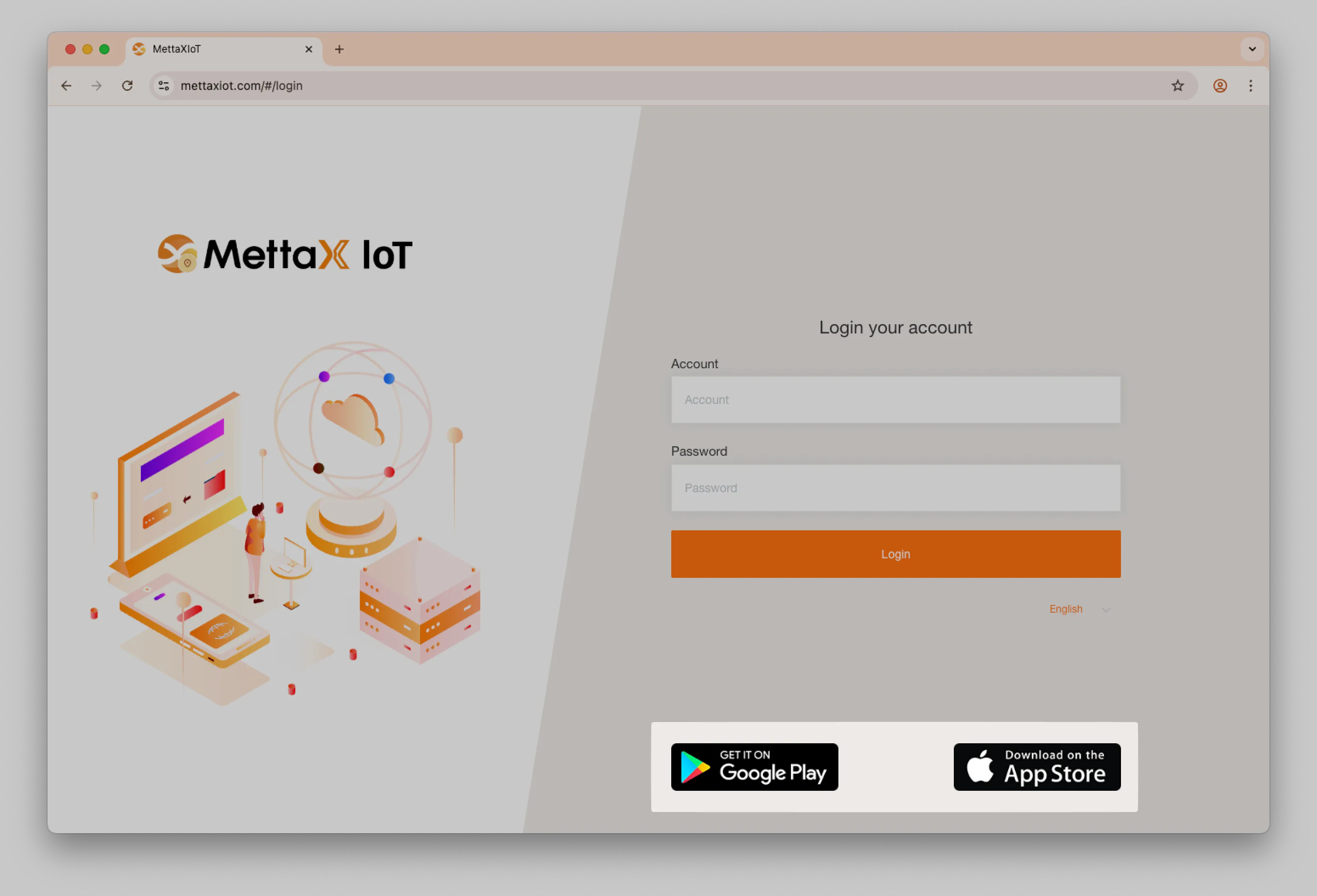
You can customize branding information such as Logo, platform name, default language, and theme color based on the domain name.
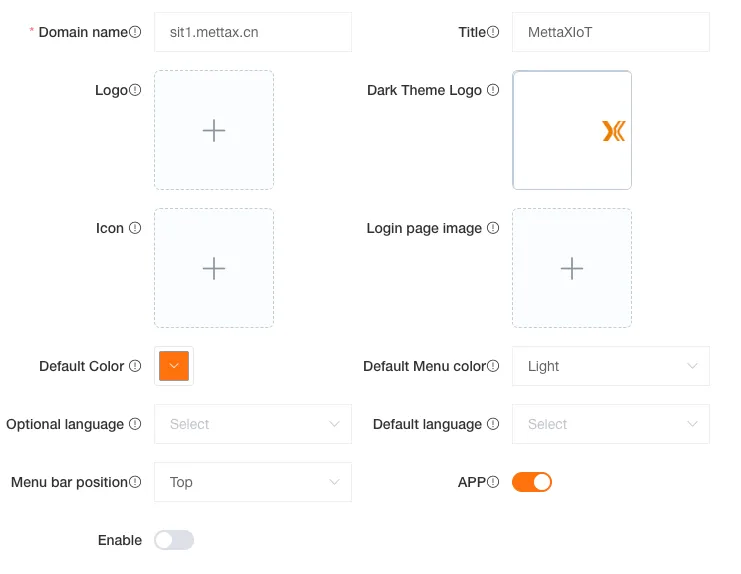
Branding Settings
Section titled “Branding Settings”Domain Name
Section titled “Domain Name”Enter your company’s website address to customize the platform with your branding.
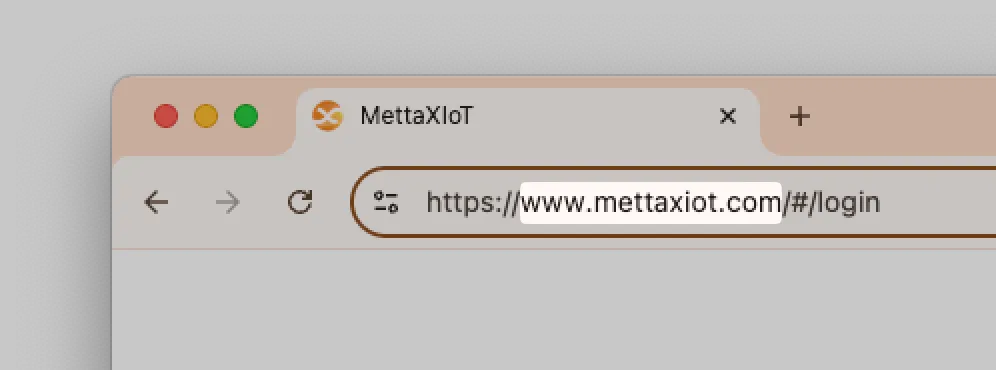
| Do | Don’t |
|---|---|
Enter the domain name. www.example.com | Do not include the transfer protocol. http://www.example.com |
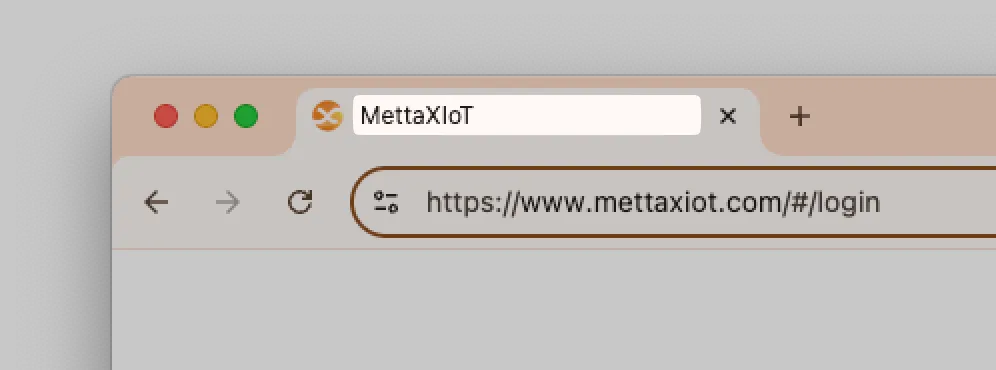
Enter your brand name. It will be displayed as the title in the browser tab.
Upload an icon to be displayed in the browser tab.
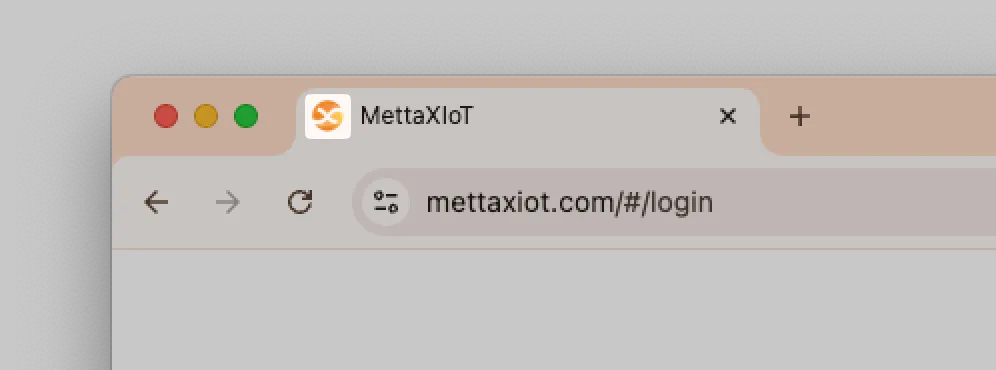
| Attribute | Value |
|---|---|
| Format | ICO |
| Dimensions | 50px × 50px |
| Maximum file size | 1MB |
The logo will display on the login page and in the top-left corner of the platform.
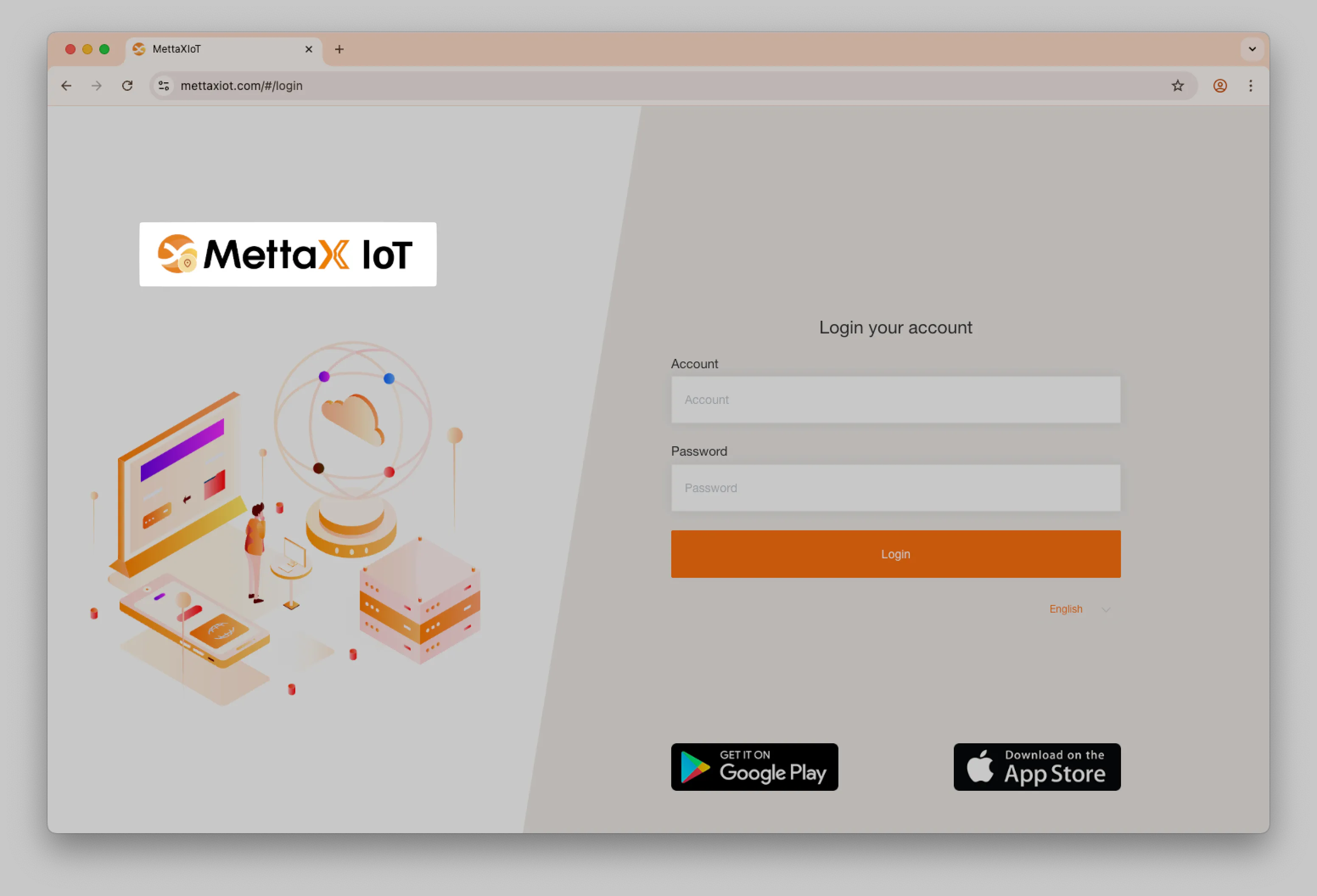
Upload separate logo images for Light mode and Dark mode. You can use the same image for both.
| Attribute | Value |
|---|---|
| Format | PNG |
| Dimensions | 1000px × 150px |
| Maximum file size | 1MB |
Login Page Image
Section titled “Login Page Image”Upload an image to be displayed on the login page.
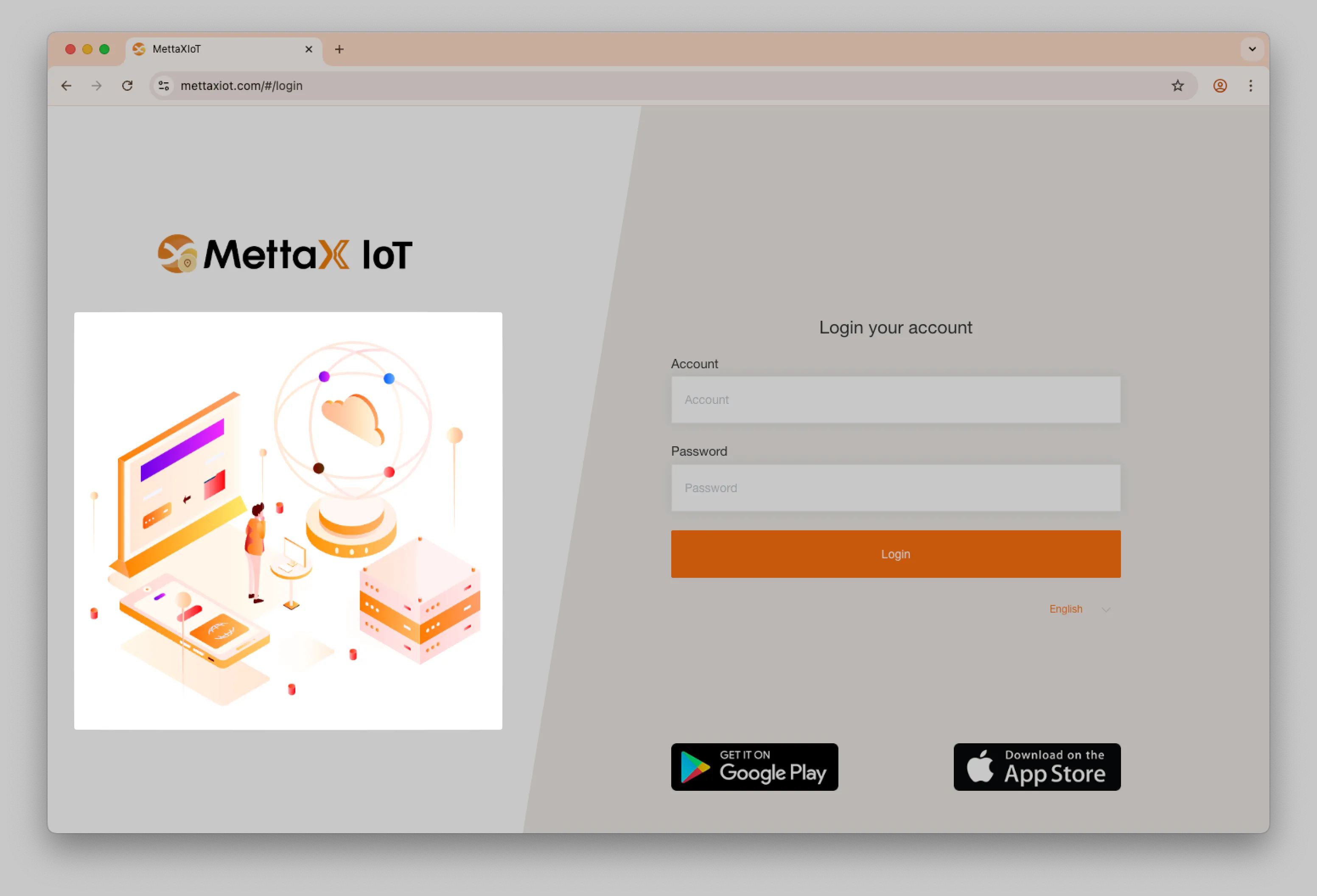
| Attribute | Value |
|---|---|
| Format | PNG |
| Dimensions | 460px × 430px |
| Maximum file size | 3MB |
Default Theme Color
Section titled “Default Theme Color”Select a color to match your company’s brand. This color will be applied as the primary theme color across the platform.
Default Menu Color
Section titled “Default Menu Color”Choose between a Light or Dark theme for the menu to align with your visual identity.
Optional Languages
Section titled “Optional Languages”Select the languages that will be available for users to choose from on the platform.
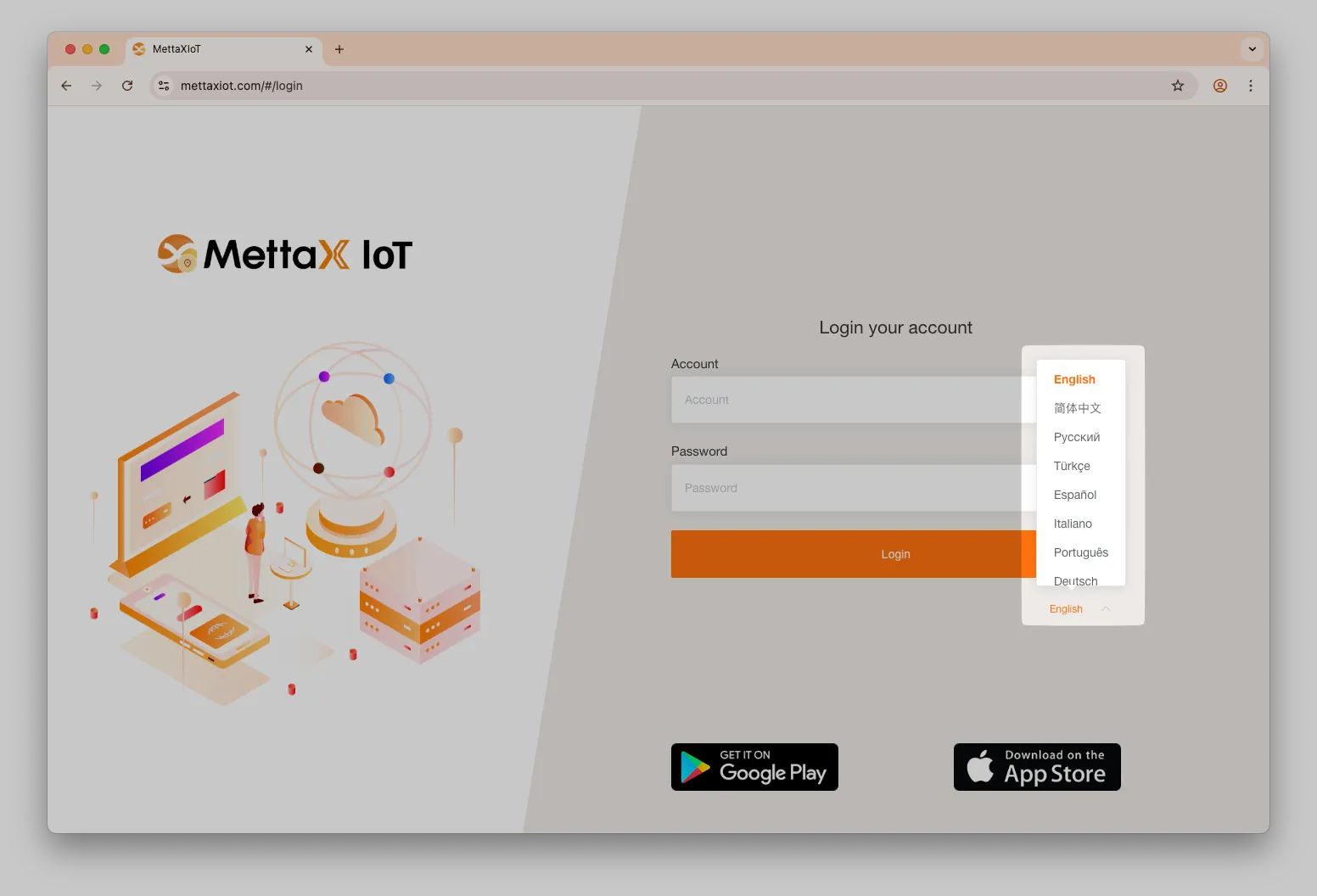
Now platform support the following languages:
- English
- 简体中文
- Русский
- Türkçe
- Español
- Italiano
- Português
- Deutsch
- Français
- عربي
- 日本語
Default Language
Section titled “Default Language”Set the default language for the platform. Users can override this setting in their personal preferences.
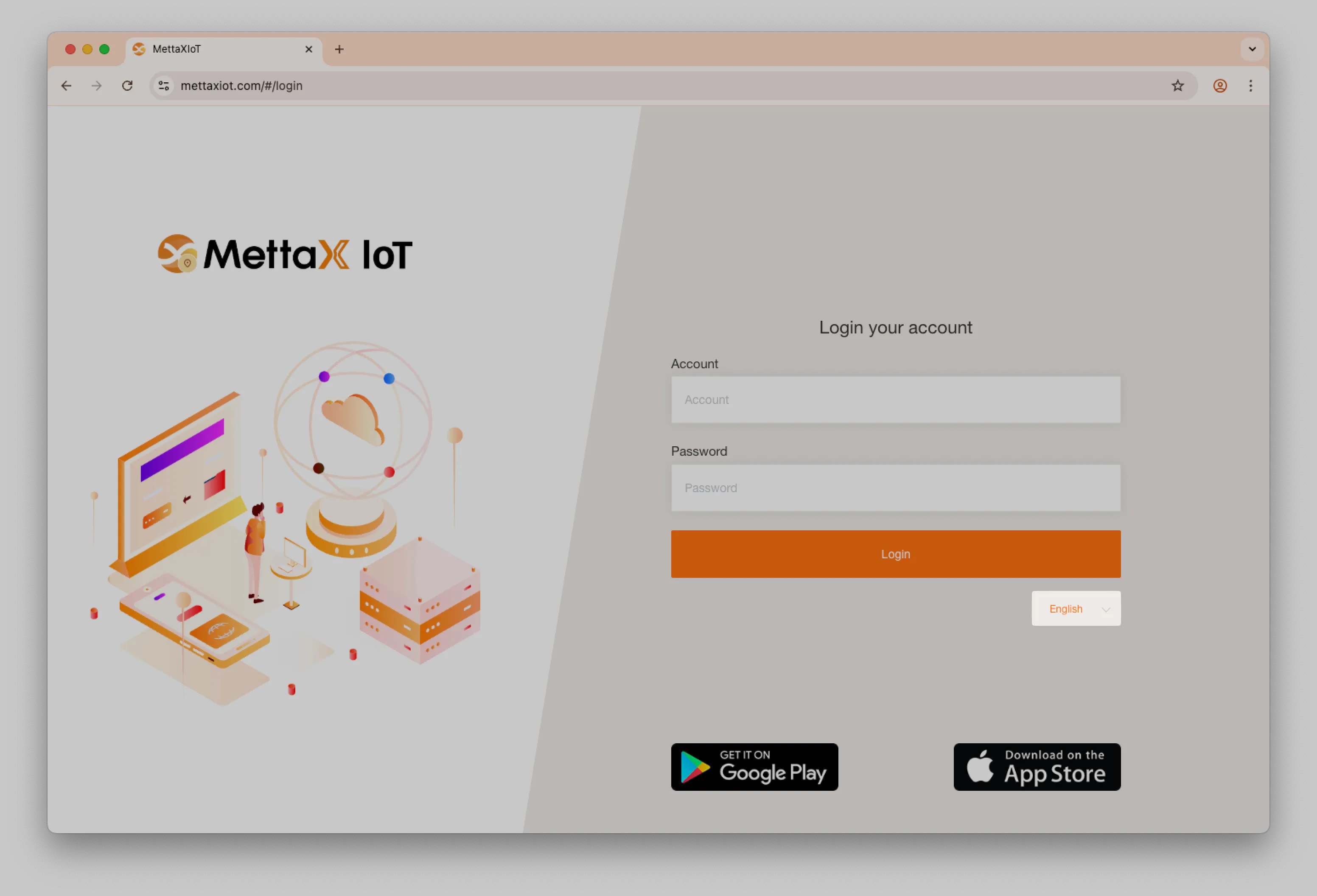
APP Download Badge
Section titled “APP Download Badge”Control whether the APP download badge is displayed on the login page.
Menu Bar Position
Section titled “Menu Bar Position”Choose the position of the menu bar, either Top or Side.
CNAME Configuration
Section titled “CNAME Configuration”To use a custom domain name (such as www.example.com), you must point it to the MettaXIoT platform at www.mettaxiot.com.
-
Find the configuration page
Navigate to the domain name analysis rule configuration page for your domain.
-
Add a new DNS record
Select the option to add a new DNS record.
-
Set the Record Type
Choose CNAME as the record type.
-
Enter the Hostname
Enter your preferred prefix (such as
www,gpsortracker) in the Hostname field. -
Enter the Record Value
Enter the MettaXIoT address in the Record Value field. Use the domain that matches your current node:
www.mettaxiot.comorindia.mettaxiot.com. -
Set TTL
Leave the TTL period value at its default setting.
Once these steps are complete, visiting your custom domain (such as tracker.example.com) will redirect you to the MettaXIoT platform.
HTTPS and SSL/TLS Certificates
Section titled “HTTPS and SSL/TLS Certificates”SSL certificates are what enable websites to use HTTPS, which is more secure than HTTP. An SSL certificate is a data file hosted in a website’s origin server. SSL certificates make SSL/TLS encryption possible, and they contain the website’s public key and the website’s identity, along with related information.
To secure your custom domain, you must purchase and bind an SSL/TLS certificate through your domain provider. Follow these steps:
-
Purchase a certificate
Go to the Certificate Management page and purchase an SSL certificate.
-
Configure the application
Follow the provider’s instructions to configure the certificate application.
-
Verify configuration
Verify the configuration on your domain’s DNS analysis page. You can also use our SSL Verification Tool to check the status.
-
Provide certificate files
After verification, you must provide two separate files: the private key in Key format and the certificate in CRT format.
Send both files to us, and we will complete the final setup on our end.
We will notify you once the configuration is finished so you can test the connection.
SSL Certificate Purchase and Renewal
Section titled “SSL Certificate Purchase and Renewal”You purchase the SSL certificate from your domain provider, and handle renewals yourself. Providers typically send reminder emails before expiration — just follow the same purchase process to get a new one.
SSL Certificate Example Files
Section titled “SSL Certificate Example Files”Private key file
Section titled “Private key file”Typically ends in .key.
-----BEGIN RSA PRIVATE KEY-----ImcaJjXQsihqkuohYcWh2QuijBgXZC+o9IUl+2S Nhw6OYXSJTuuD09VFQFAaUC41AoGAfusLj179P1QYNJKo5a+Jqg4O0Uc3wgjYRlZdkBQ7BJ6O+nKeZaXM7wTlALwmZ9RKyKbvzR9AGvqHgPxUn0xTNOzIN+WI/Yyg7vkEQUCdb96YVE7LRQgxiBtSgQUrya4rlUZb0S/s/yye2iWrCTuWbSOr2OJIuo4LPaCen3/W3ZECQQD4lpsqR+sIBFkYFPayHMuNzlIkA31rx1fff19APAEytOiQi+opbBOhE73a+txQE6doGokawtIAtb/p8 CCtThbbFLJBIRjQWCIl1NnNWSwlqPO9FQJBAOM05EVUzmDZeIUmRASvhOzrcvAvsGbeIFbKmEihj4bFCvtypmeNvLMw1Apd1xfpnszr0/x9rGuxsuLLo49ZzfkCQQCFi940OxgmwfDQovh166CXgKEZ93ZA9953Zb7Kedzu4Fom-----END RSA PRIVATE KEY-----Certificate file
Section titled “Certificate file”Typically ends in .crt.
-----BEGIN CERTIFICATE-----VVMxCzAJBgNVBAgTAlVUMRcwFQYDVQQHEw5TYWx0IExha2UgQ2l0eTEeMBwGA1UEChMVVGhlIFVTRVJUUlVTVCBOZXR3b3JrMSEwHwYDVQQLExhodHRwOi8vd3d3LnVzZXJ0cnVzdC5jb20xKzApBgNVBAMTIlVUTi1VU0VSRmlyc3QtTmV0d29yayBBcHBsNzExMDY5NDAxMTAvBgNVBAsTKFNlZSB3d3cucmFwaWRzc2wuY29tL3Jlc291cmNlcy9jcHMgKGMpMDcxLzAtBgNVBAsTJkRvbWFpbiBDb250cm9sIFZhbGlkYXRlZCAtXCKBNQNAzybtImcaJjXQsihqkuohYcWh2QuijBgXZC+o9IUl+2SNhw6OYXSJTuuD09VFQFAaUC41rLcU9BDh6w7xmGnZJzZ0H8jm2E9NA6s6DId7qQ+f/YdkKePRR+Dwp9GnjmheMvhqs0DFj+tCFhHX3PK8WGrYBYG8ejsgo8uKAKTkishpOMyTs4CmTlDXchn5QGRjpq2FlIqqlTwLdMGpkeUSZjuAFblLhTQs158Q5VHC5SH+3DvJW+g7/CpTjBhiTnfNyD19rUmrWZ2dmic50B32BAiIO9OepmVvI8nA1TBvNFfhX75cOCk=-----END CERTIFICATE-----Certificate Configuration Verification Tool
Section titled “Certificate Configuration Verification Tool”The Certificate Configuration Verification Tool helps you verify whether your configuration is correct before submitting your certificate.
Domain Verification checks whether your domain’s CNAME record correctly points to the MettaXIoT platform.
Certificate Verification checks whether the private key matches the certificate, whether the certificate is valid, and whether the certificate has expired.
How to verify and apply the domain and certificate
Section titled “How to verify and apply the domain and certificate”-
Open the configuration dialog
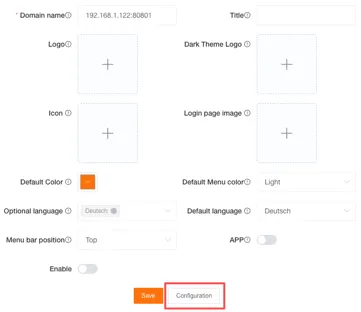
On the Brand Settings page, click the Configure button to open the certificate configuration dialog.
-
Check the domain status

The domain verification status is displayed next to the domain input field:
Unverified: The domain has not yet passed verification.
Valid: The domain resolution is configured correctly.
Invalid: The domain resolution is configured incorrectly.
-
Upload certificate files
Click the Upload button to upload the following files respectively. You may also paste the file content directly into the text boxes.
The Private Key file is the private key of the SSL certificate, and supports
.key,.pemand.txtformats.The Certificate file is the SSL certificate file, and supports
.crt,.cer,.pem,.txt, and.csrformats. -
Verify and save
Click the Verify and Save button, and the system will automatically perform the following verifications. After verification passes, the certificate configuration will be saved.
-
Verify that the domain CNAME resolution is correct
-
Verify that the private key matches the certificate
-
Parse the certificate validity period
-
Check whether the certificate has expired
-
-
Download and apply
Download a ZIP archive containing the domain information, private key, and certificate, and send it to MettaXIoT staff to complete the final setup.