Alert
The platform received an alert notification, but the device failed to successfully upload the alert evidence
Section titled “The platform received an alert notification, but the device failed to successfully upload the alert evidence” flowchart LR
A[Alert Triggered] --> B[Local Screenshot/Video Clip Capture]
B --> C[Write to Storage]
C --> D[Network Transmission]
D --> E[Platform Receives]
-
Verify that the device actually generated an alert, for example you heard the device announce the corresponding alert, or the platform received an alert notification.
-
Verify that the device’s network connection is normal: dial-up successful and signal strength greater than
19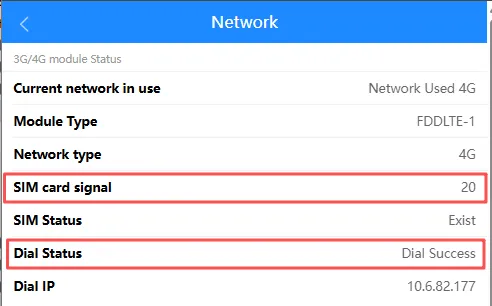
-
Verify that the device’s TF/SD card is functioning properly: Disk status is
normal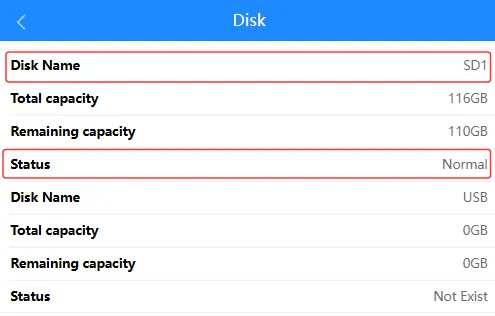
-
Verify that the device’s location status is normal: Location status is
Located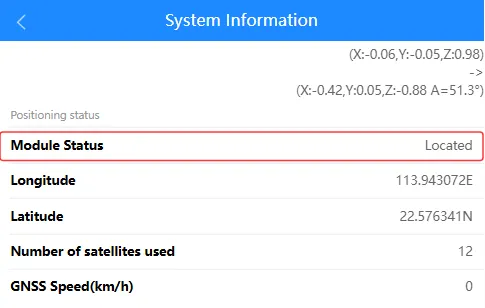
-
Verify that the device has the attachment upload feature enabled: the attachment upload toggle on the corresponding platform server is
on.
-
Verify that the alert file upload toggle is enabled on the platform: in the IoT section, the
video-settings>upload filetoggle should beon.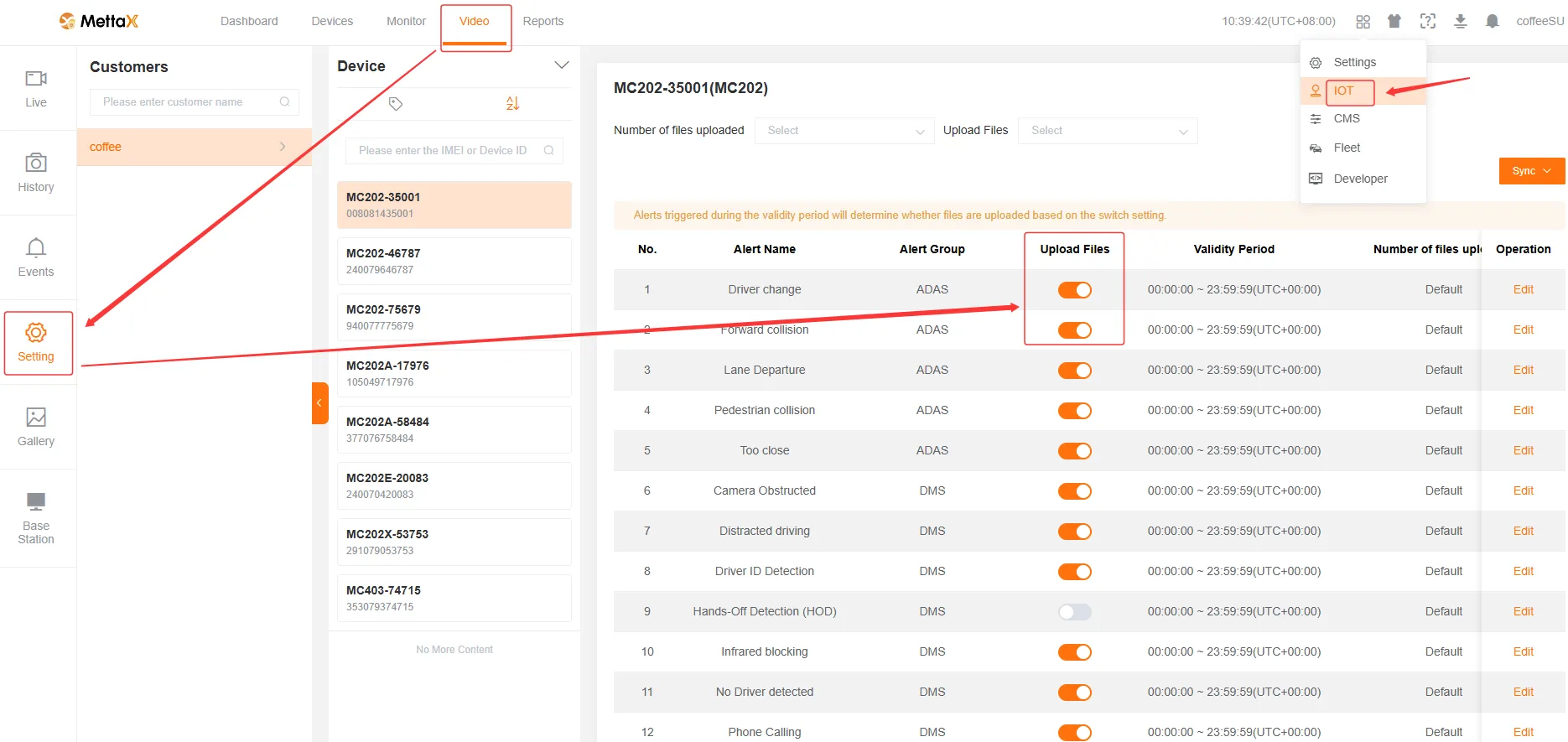
-
Verify that alert evidence is generated correctly on the TF/SD card and that exported files play back normally: when an alert is triggered, the relevant alert evidence should be stored in the
ASdirectory on the TF/SD card. For the folder structure on the relevant storage card, refer to Alarm Video Storage Location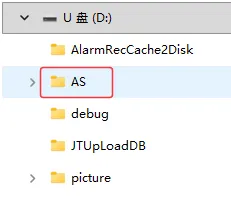
-
Verify that the SIM card has been added to the whitelist: the carrier must add the platform server IP to its whitelist.
-
Confirm whether the device is operating across international borders: cross-border operation may cause the device’s APN to change and require an SMS command update. Refer to SMS Commands for relevant SMS commands.
-
If, after completing the troubleshooting steps above, an alarm is triggered but there is still no alarm evidence, please contact FAE technical support.
The Alarm Time on the Device Card Does Not Match the Actual Time
Section titled “The Alarm Time on the Device Card Does Not Match the Actual Time”-
Verify that the device’s location status is normal: Location status is
Located. By default, the device usesGPS time synchronization, and time calibration requires the device to beLocated. -
If the device is
Not Located, useMCTool - System Clock - Modify Time.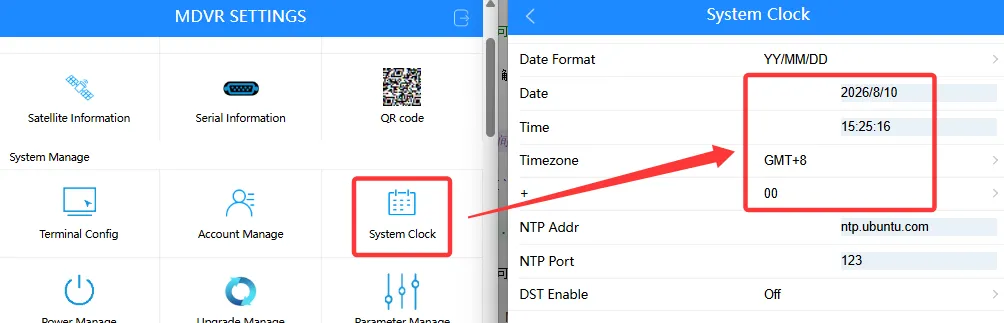
-
Modify
Terminal Config - Position Modeto make it easier for the device’s location status to change toLocated.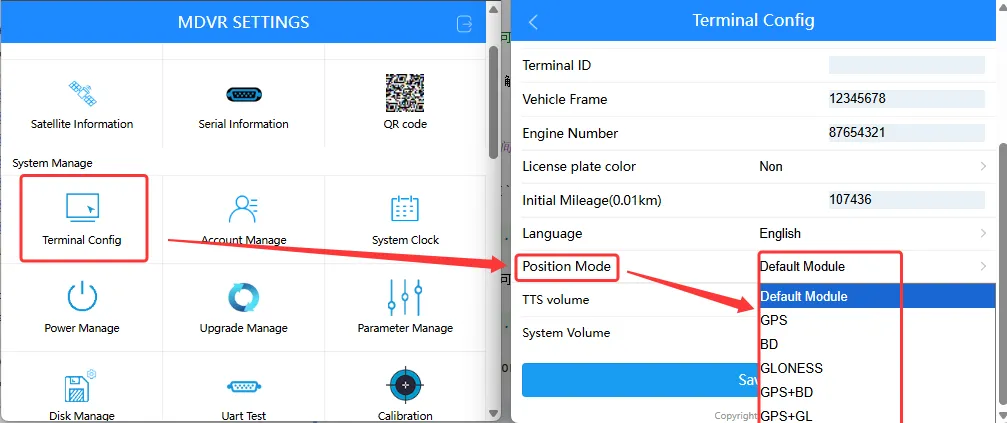
-
If, after completing the troubleshooting steps above, an alert is triggered and the time still does not match the actual time, please contact FAE technical support.