Remote Upgrade Access
Remote Access to Devices via the Platform
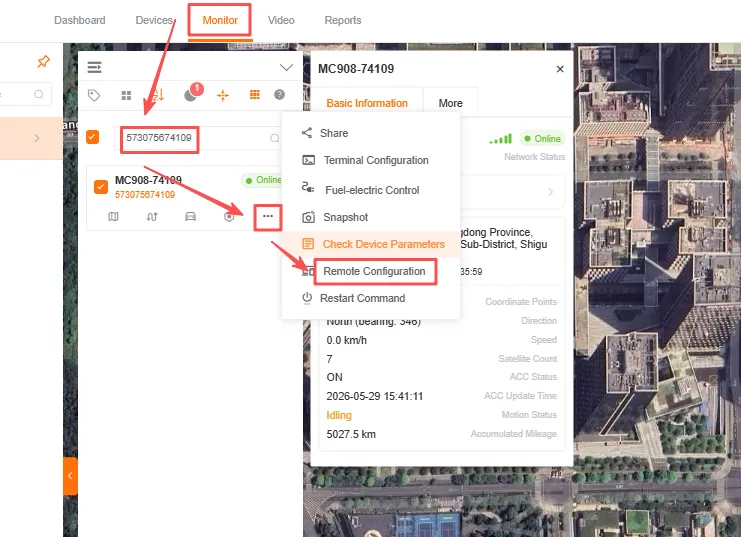
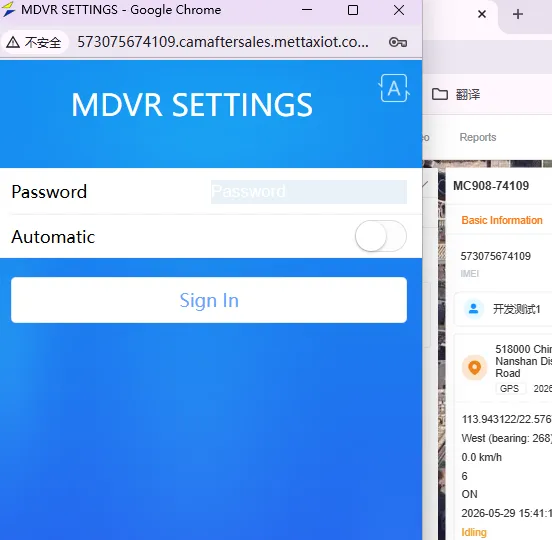
Section titled “Remote Access to Devices via the Platform”In the IOT section, click the Monitor interface, enter the device ID you want to access in the input field, click ···, select Remote Configuration, and then click Confirm.
Upgrading Devices via the Platform’s Remote Web Interface
Section titled “Upgrading Devices via the Platform’s Remote Web Interface”-
Refer to [Accessing Devices via the Platform](#Remote Device Access via the Platform) to enter the Remote Configuration interface
-
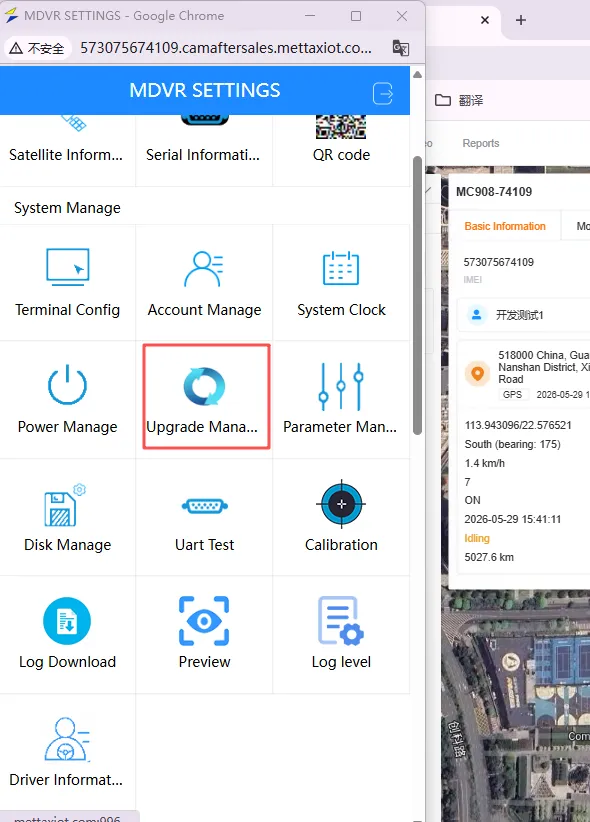
Click Upgrade Manage
-
Click
Select Fileto choose and upload the firmware upgrade package, then clickStart the upgradeand wait for the device to upgrade and reboot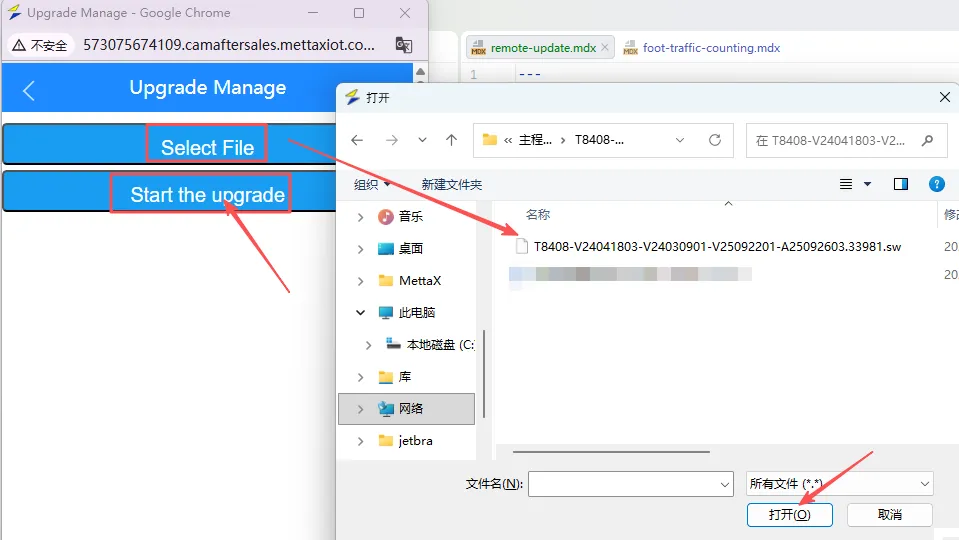
-
View
System Informationto verify whether the device has been successfully upgraded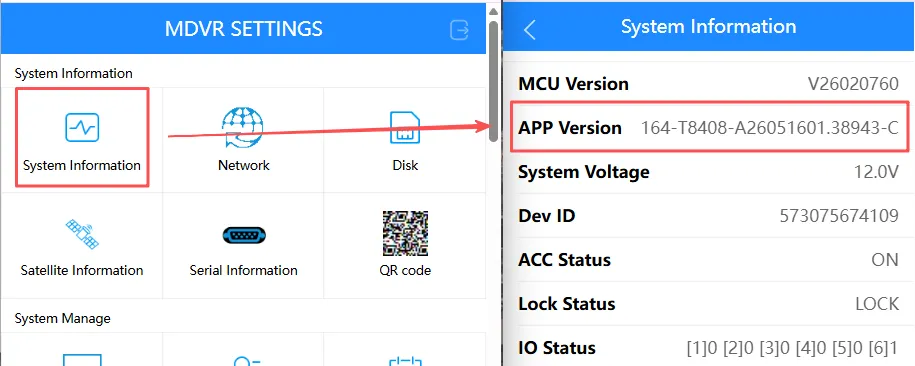
Upgrading Devices via Remote Commands from the Platform
Section titled “Upgrading Devices via Remote Commands from the Platform”-
Command format:
#FTPCT:FTP-IP,FTP-port,FTP-username,FTP-password,upgrade-file-path;Example:
#FTPCT:192.168.111.111,1111,name,password,/path/01_M09AV2-A26012302.36416.sw; -
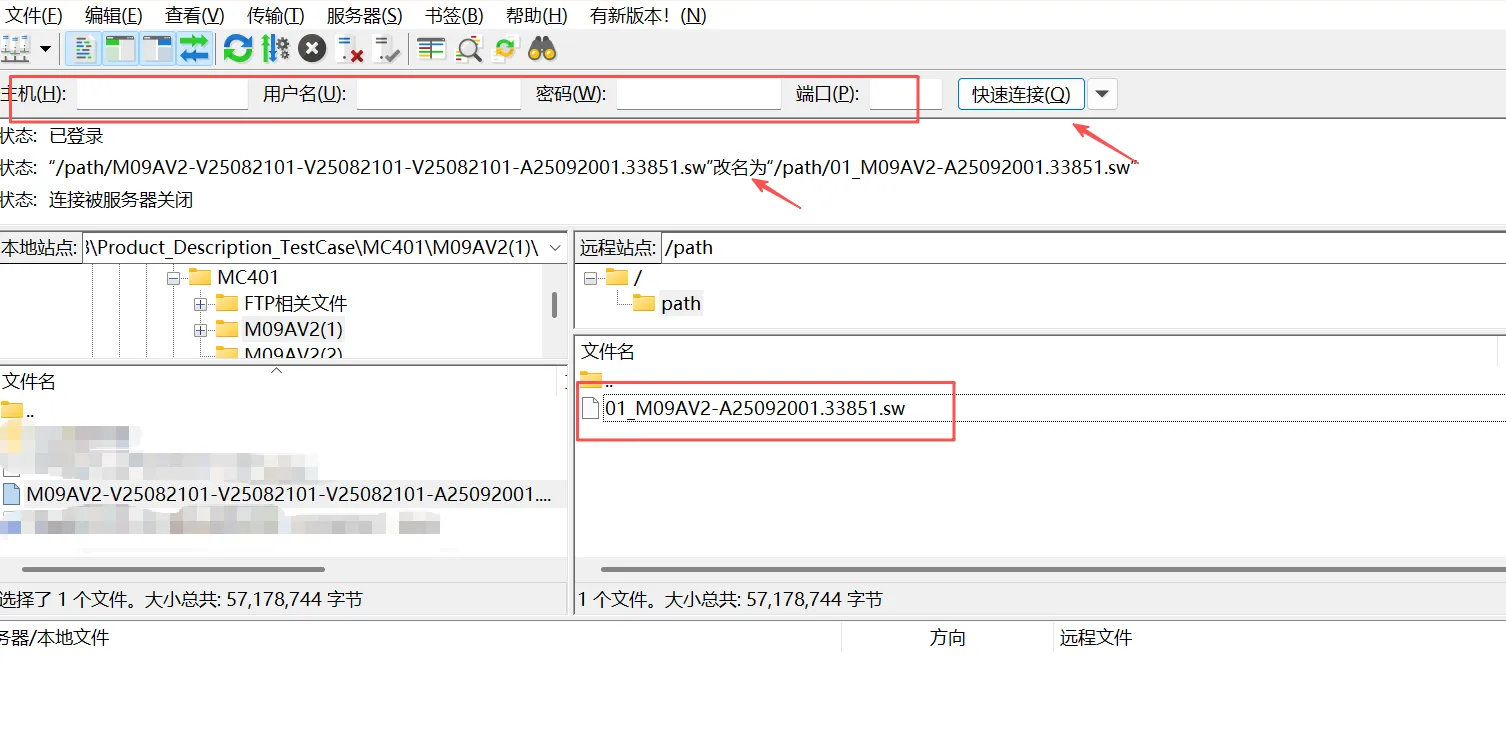
File Format: A prefix must be added and the filename modified; the prefix rules are shown in the table below.
Example:
T8008-V21081301-V22012201-V22012201-T22080506.16657.sw==>01_T8008-T22080506.16657.swNumber Name 01_ Main program 02_ Parameter configuration file 06_ Microcontroller program 07_ Extended version program / FRPC file 08_ Identity information file 09_ AIPCM Voice File -
Access the FTP server by entering the FTP IP address, port, username, and password. Connect to the server, upload the update files, and rename them according to the instructions.
-
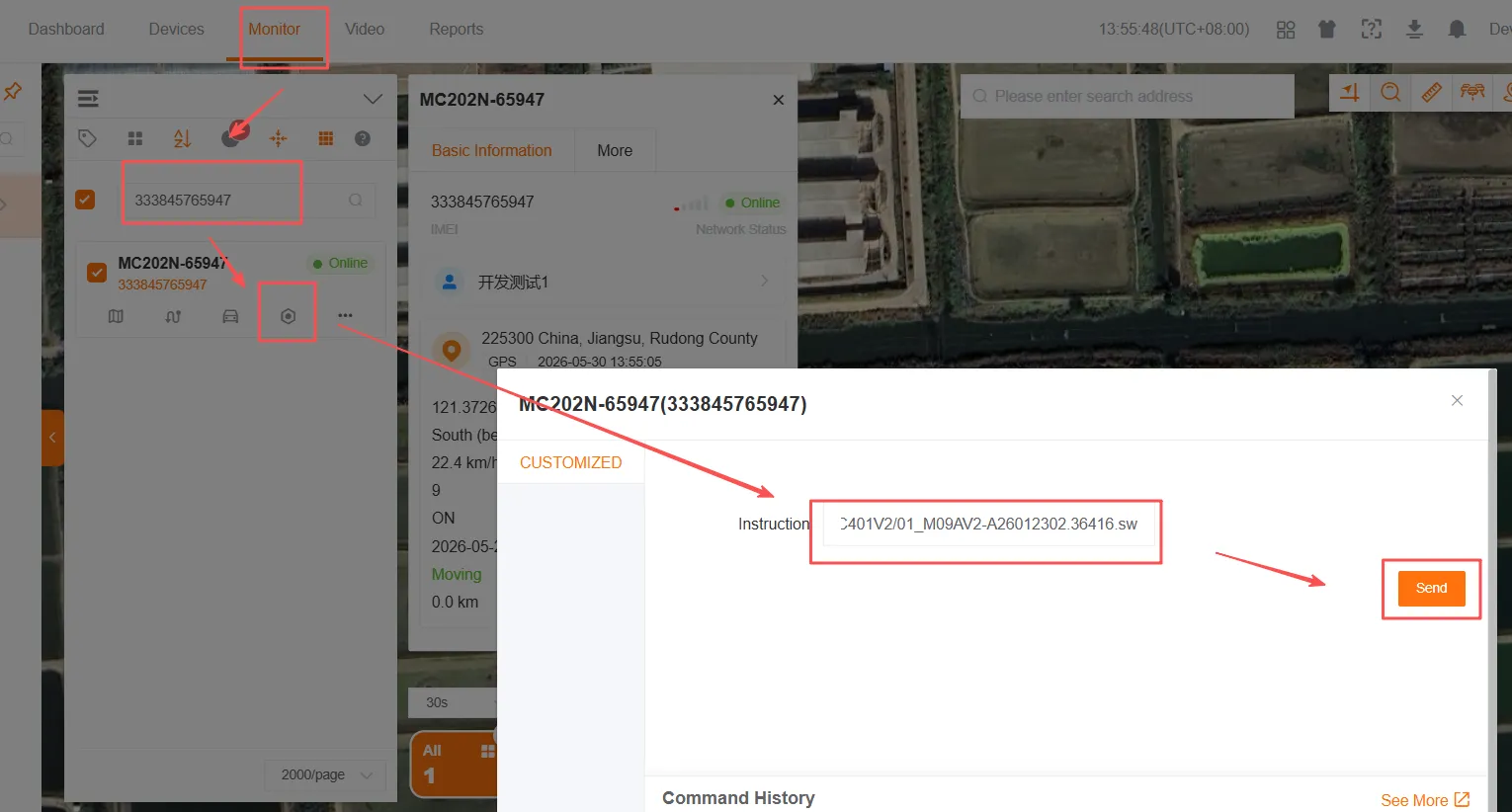
On the IoT platform’s Monitor page, locate the Device ID and send the command; once successfully sent, the device will automatically update and reboot.
-
Remotely access the device to verify whether the update was successful.